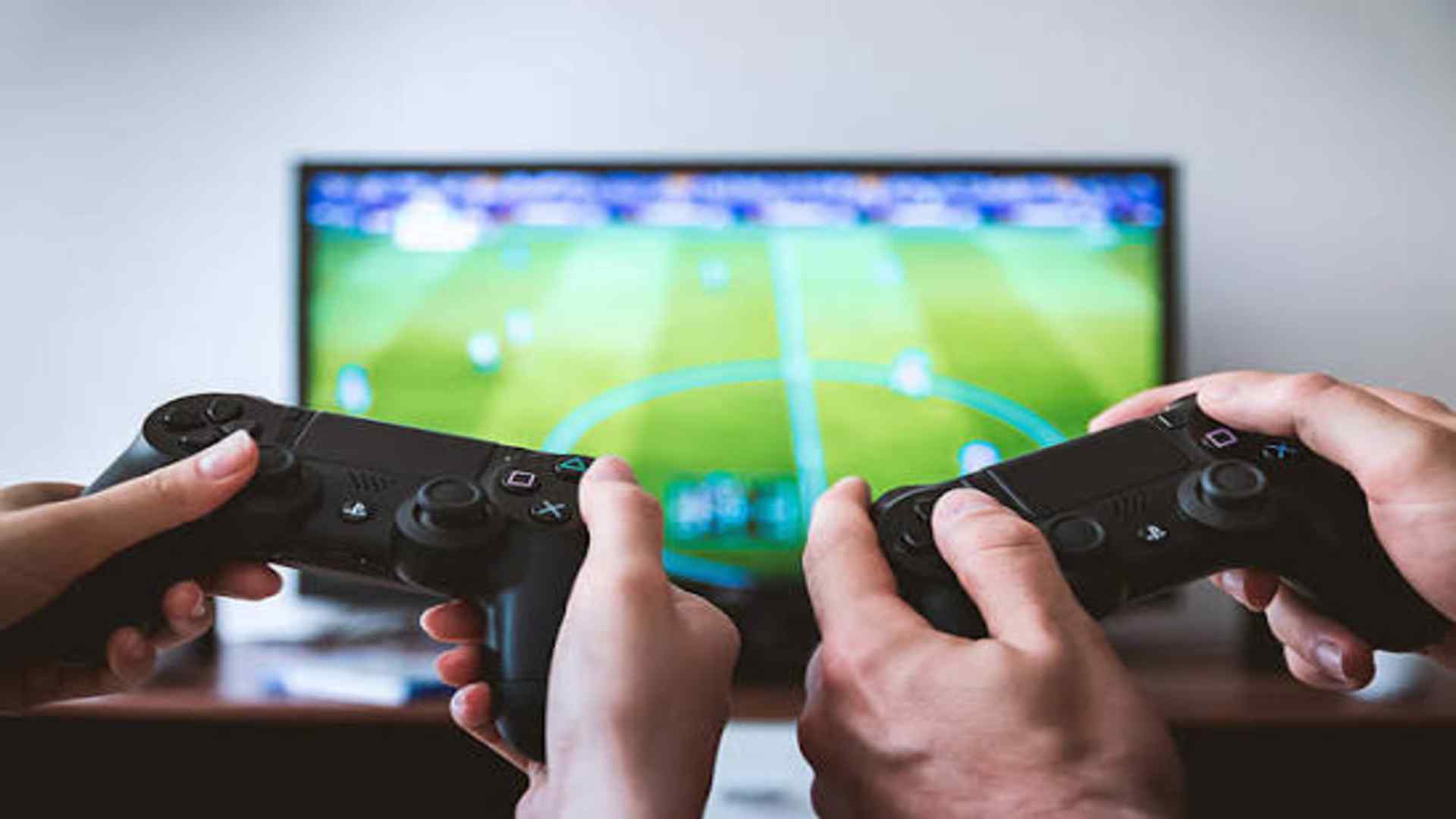
Connecting Sony DualSense hardware to desktop platforms offers PC gamers access to premium ergonomics, tactile feedback, and precise control options. Modern operating systems fully support the PlayStation 5 controller across both wired and wireless configurations. Understanding how to set up and optimize these settings ensures full functionality during intensive gaming sessions.
Connecting via USB Cable or Bluetooth
Establishing a physical connection requires a standard USB-C to USB-A or USB-C to USB-C data cable connected directly to an available port on your computer. Modern operating systems automatically recognize the peripheral as a generic input device without requiring manual driver installations. Wired connections guarantee minimal latency while maintaining active battery charging during extended gameplay.
For wireless freedom, hold down the Create button and the PS Logo button simultaneously until the light bar begins blinking rapidly. Navigate to your computer's Bluetooth settings, select the option to add a new device, and pair the Wireless Controller. Once paired, the lighting pattern stabilizes to confirm a stable wireless link.
Steam Integration and Game Store Compatibility
Steam features built-in DualSense support through its controller settings menu, automatically translating inputs for most modern PC titles. Enabling PlayStation Configuration Support allows players to customize button layouts, adjust joystick deadzones, and calibrate gyro controls seamlessly. This system bridges the gap for games that natively expect Xbox layout inputs.
When launching games outside of Steam, third-party mapping software can simulate standard XInput drivers to prevent compatibility issues. Many modern releases on digital storefronts now include native PlayStation button prompts and direct input recognition. Checking individual game settings helps ensure your preferred control scheme functions properly.
Advanced Haptic Feedback and Feature Support
To experience specialized features like adaptive triggers and advanced haptics, most PC titles require an active USB connection. Game developers must specifically program native support for these immersive feedback systems on desktop ports. Operating over wireless Bluetooth often defaults audio and vibration rumble to standard feedback profiles.
Configuring audio output settings correctly prevents the PC from mistakenly identifying the controller speaker as the primary sound playback device. Updating controller firmware periodically using official desktop utilities keeps system drivers running efficiently. Keeping your device software up to date minimizes potential input conflicts across various gaming platforms.